

The easiest way to develop a multi-service golang project

Meet Wingman, your new CLI companion that simplifies the development of Go multi-service projects. Stop losing time to repetitive tasks like configuring reverse proxies, coordinating service rebuilds, managing environment variables, and serving static assets. Wingman bundles the most-needed tools so your development workflow is seamless.

Install go install github.com/oblaxio/wingman@latest
Learn More
Auto reload

With only one file change, Wingman rebuilds all affected services

Start groups

No need to start each service individually or all of them at once. Create service groups, and start only what you need.

Env vars
Build flags
Reverse proxy

Wingman comes with an integrated reverse proxy to route requests to your services

Running multiple services

Develop multiple services in a single project with ease

Features

  • Auto reload
  • Integrated proxy
  • Startup groups
  • Environment variables
  • Build flags
  • Running multiple services

Having to manually restart services after each code change is tedious and time-consuming. Wingman monitors your project files and even for a single file change it automatically rebuilds and restarts all of the affected services. This means you can see your changes in action immediately, without any extra effort, across all services in your project.

See the docs
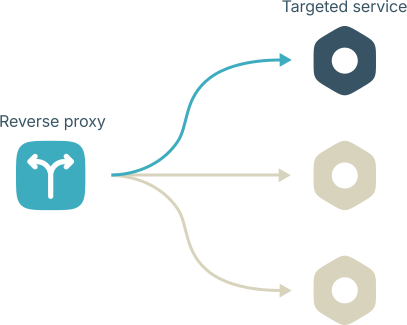
Say goodbye to the hassle of setting up and managing reverse proxies for your services. Wingman comes with an integrated reverse proxy that automatically routes requests to the appropriate service based on your configuration. It can also serve static assets or a single page application (SPA), making it a one-stop solution for all your proxying needs.

See the docs
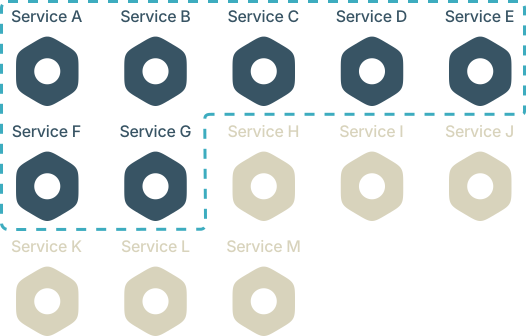
A single project can consist of multiple services (sometimes hundreds, or even thousands), but most of the time you don't need to run them all at once. Wingman allows you to define service groups that let you start only the ones you need for your current task, keeping your resources at bay. To make things even easier, Wingman allows you to reference service groups within other groups, which keeps things nice and clean.

See the docs

Managing environment variables across multiple services can be a headache. With Wingman, you can easily define and manage global, or per-service environment variables. Wingman ensures that the correct variables are set when each service starts, making it easy to manage different configurations for development, testing, and production. You have .env files? No problem, Wingman supports those too.

See the docs
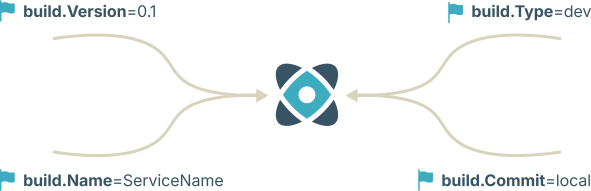
Wingman allows you to specify custom build flags for each service. This means you can easily enable or disable features, set optimization levels, or include debug information as needed. Wingman takes care of passing the correct flags during the build process, so you can focus on coding without worrying about build configurations.

See the docs
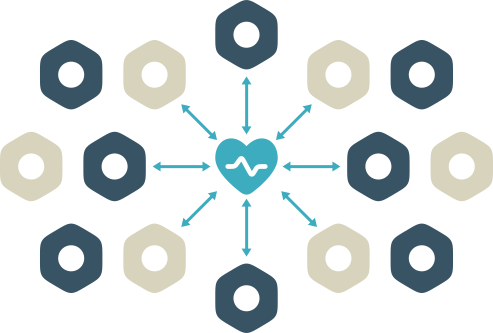
Wingman is designed from the ground up to handle multi-service projects. It provides a unified interface to manage all your services, making it easy to start, stop, and monitor them. Wingman understands service dependencies, so it can ensure that services are started in the correct order. This makes developing and testing multi-service applications a breeze.

See the docs

Installation

To install Wingman, make sure you have Go installed on your system. Then, run the following command:

                            $ go install github.com/oblaxio/wingman@latest
                        

Configuration

Configuring Wingman for your project is simple. Start by creating a base configuration file using the init command:

                            $ wingman init
                        

This will generate a wingman.yaml file in your project's root directory. You can then customize this file to define your services, environment variables, build flags, and proxy settings. Here's an example configuration to get you started:

Base configuration

                                    version: 1.0
module: github.com/myorg/myproject
build_dir: bin
watchers:
    include_dirs: ["local/pkg", "local/services"]
    exclude_dirs: ["vendor", "modules"]
    include_files: ["*.go"]
    exclude_files: ["test_*.go"]
                                

This is an example configuration file. You can customize it to fit your project's needs. It contains the basic settings required to get started with Wingman, like module name, build directory, and file watchers.

version The version number of the wingman config. It's the root element of the config file.
module The module name of your Go project. This should match the module name defined in your go.mod file.
build_dir Directory where the built service executables will be stored.
watchers Configuration for file watchers to trigger service rebuilds.
include_dirs The directories to monitor for file changes.
exclude_dirs Directories to ignore when watching for file changes.
include_files File patterns to include when watching for changes. Yoou can use a * wildcard to match multiple files.
exclude_files File patterns to exclude when watching for changes. You can use a * wildcard to match multiple files.

Adding services

                                    ...
services:
    ...
    svc-one:
        entrypoint: local/services/svc-one
        executable: svc-one
        proxy_handle: /api/v1/svc-one
        proxy_address: 127.0.0.1
        proxy_port: 10001
        env_files:
            - .env.svc-one
        env:
            PORT: 10001
                            

The services section defines the individual services that make up your project. Each service has its own configuration block where you can specify details like the entrypoint, executable name, environment variables, and proxy settings.

This is an example configuration of adding a typical REST API service to Wingman. You can customize it to fit your project's needs. What is specific here are the proxy_* fields which work together to configure the integrated reverse proxy to route requests to this service.

                                    ...
services:
    ...
    svc-two:
        entrypoint: local/services/svc-two
        executable: svc-two
        env:
            PORT: 10002
        depends_on:
            - svc-one
                            

An example configuration of adding a service that does not expose a routable REST API. Usually used with GRPC or async services. Notice that this service does not have any proxy_* fields, so it's not exposed via the integrated reverse proxy.

services The root element for defining all services in your project.
{service_name} The unique name of the service. This will be used to reference the service in commands and other configurations. (in the examples above, svc-one and svc-two)
entrypoint The path to the main package of the service. This is where wingman will look to build the service executable.
executable The name of the built executable for the service.
proxy_type The type of proxy to use for this service. You can choose between service and staic
proxy_handle The URL path prefix that the reverse proxy will use to route requests to this service. It maps 1:1 to REST entrypoints/URLs exposed by the service.
proxy_address The address where the service will be listening. Usually localhost or 127.0.0.1.
proxy_port The port where the service will be listening. Make sure this port is not in use by other services.
proxy_rewrite (Optional) A rewrite rule for the proxy. This allows you to modify the request path before forwarding it to the service. It's written in the form of <from>:<to>, where <from> is the original path part (sent to the proxy) and <to> is the replacement string forwarded by the proxy.

Example: /api/v1/storage:/storage will strip the /api/v1/storage part from the request path before forwarding it to the service, and replace it with /storage. So the url http://localhost:8080/api/v1/storage/list would be forwarded to the service as http://service_address:service_port/storage/list
depends_on A list of other services that this service depends on. Wingman will ensure that these services are started before this service.

Setting up the reverse proxy

                                    ...
proxy:
    enabled: true
    port: 8080
    address: 127.0.0.1
    api_prefix: api
    log_requests: true
                            

To get the reverse proxy working, you need to enable it in the proxy section of the configuration file. Here, you can specify the port and address where the proxy will listen, as well as other settings like API prefix and whether to log teh requests.

proxy The root element for configuring the integrated reverse proxy.
enabled A boolean value to enable or disable the reverse proxy.
port The port where the reverse proxy will listen for incoming requests.
address The address where the reverse proxy will listen.
api_prefix The URL prefix for the proxy API endpoints.
log_requests A boolean value to enable or disable logging of incoming requests to the proxy.

Service startup groups

                                    ...
service_groups:
    core_services:
        - "svc-one"
        - "svc-two"
        - "svc-three"
    my_group:
        - "svc-four"
        - "svc-five"
        - "@core_services"
                            

You can create named groups that list the services to be started together. This allows you to easily manage and start only a sub-group of your services with a single command. You can also nest groups within other groups by using the @{group_name} designationfor better organization.

service_groups The root element for defining service startup groups.
{group_name} The unique name of the service group. This will be used to reference the group when starting services.
{service_or_group} The name of a service or another service group to include in this group. To reference another group, prefix the group name with an @ symbol.

Environment variables

                                    ...
env_files:
    - "some_global.env"
    - "another_global.env"
env:
    DEBUG: true
    LOG_LEVEL: info
                            

You can define global environment variables that will be applied to all services, as well as service-specific environment variables. You can also specify .env files to load environment variables from.

What is important to mention is that the variables defined in the env section would overwrite the variables defined in the imported env_files.

                                    ...
services:
    ...
    svc-one:
        ...
        env_files:
            - "some_global.env"
            - "another_global.env"
        env:
            DEBUG: true
            LOG_LEVEL: info
                            

You can also define environment variables specific to each service. These will override any global environment variables defined in the top-level env section or env_files.

env A map of environment variable names and their corresponding values.
env_files A list of .env files to load environment variables from.

Build flags

                                    ...
services:
    ...
    svc-one:
        ...
        ldflags:
            main.Version: "v0.1"
            main.Env: "dev"
            main.Name: "obx-core-keyring-dom"
            main.Commit: "local-version"
                            

You can specify custom build flags (ldflags) for each service. This allows you to set version information, enable or disable features, or include debug information as needed. Wingman will pass these flags during the build process.

ldflags A map of build flag names and their corresponding values.

How to use

Once you have Wingman installed and configured for your project, using it is straightforward. To start all services defined in your configuration, simply run:

                            $ wingman start
                        

If you want to start a specific group of services, you can do so by specifying the group name:

                            $ wingman start <group name>
                        

Contribute

We welcome contributions from the community! If you have ideas for new features, bug fixes, or improvements, please feel free to open an issue or submit a pull request on our GitHub repository. Together, we can make Wingman even better.